 twichat
Which layout fits your screen?
| What you want | Method | Keep in mind |
|---|---|---|
| Read only chat in a large view | Pop-out chat window | Video stays in the channel page. |
| Keep video and chat on one screen | Theater Mode or side-by-side windows | The video player’s full-screen mode does not keep chat beside it. |
| Move chat to another monitor | Move the pop-out window | Keep video on your main screen. |
| Switch between several channels | Twichat desktop client | Several chats stay open, with one active video stream. |
1. Open Twitch chat in its own window
- Open a Twitch channel in a desktop browser.
- In chat settings, find the option to pop out chat. Its label can vary with your Twitch language.
- Maximize the new window or move it to another monitor.
- Keep it in front to focus on messages. Video remains in the channel page.
You can also use your browser’s full-screen mode on the chat window. This is browser full screen, not the video player’s full-screen button.
Twitch describes pop-out chat in its channel page guide.
2. Keep chat beside the video
Twitch Theater Mode gives the stream more space while keeping chat on the page. It is a useful option when you want both on one screen without installing another application.
For a different balance, arrange the chat and video windows side by side using your operating system’s window placement controls. With two monitors, you can dedicate one to chat and the other to video.
Putting only the video in full screen hides the surrounding page. To keep chat visible on the same screen, return to Theater Mode or a windowed layout.
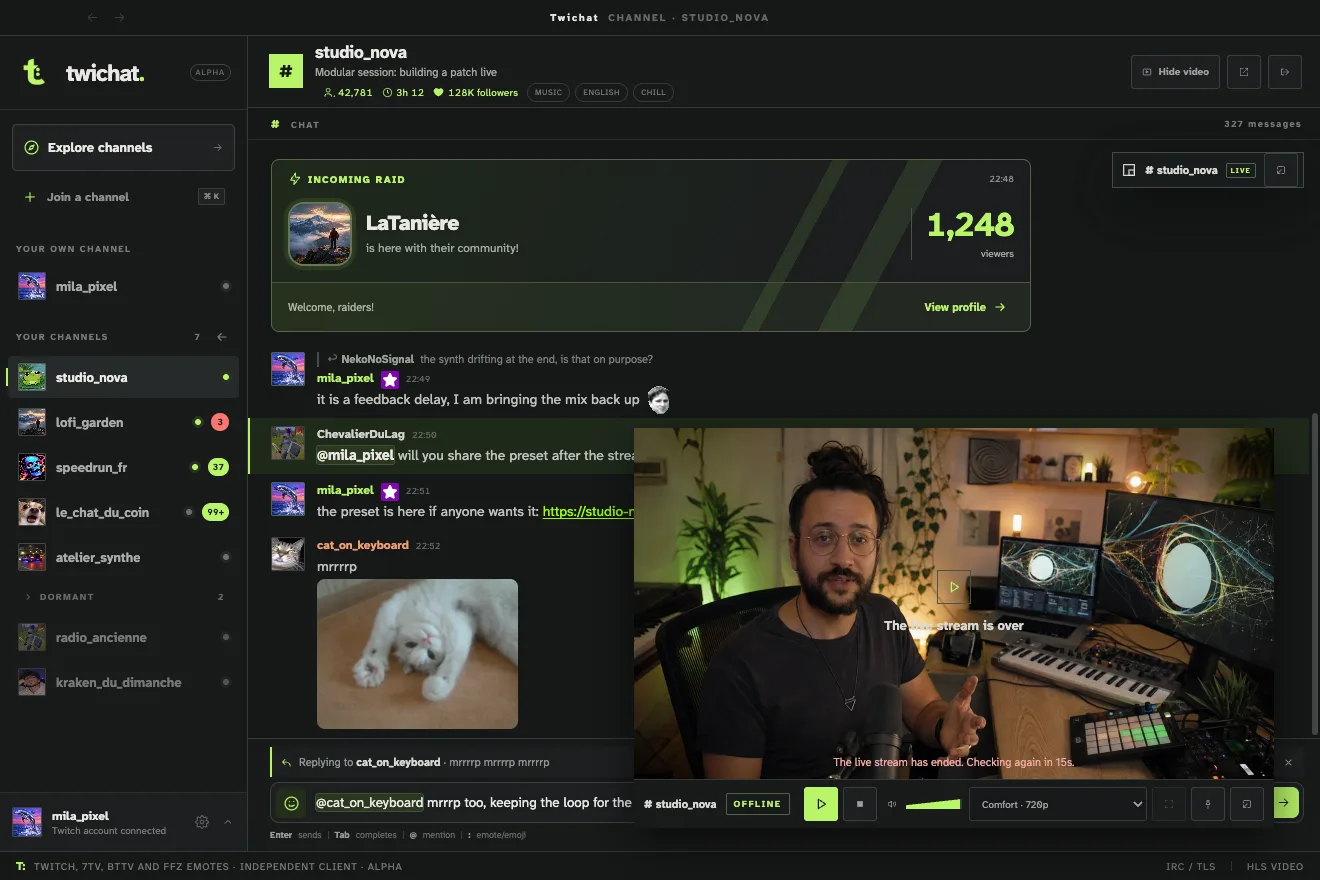
3. Choose the space for chat and video with Twichat
Twichat is a free application for macOS, Windows and Linux. You choose the balance between chat and video: a big player when you want to watch, wider messages when you want to talk, or a separate window on another screen.
- Install Twichat using the guide for your operating system.
- Choose anonymous mode to read or connect your Twitch account to write.
- Add the channels you watch.
- Enlarge or shrink the player to suit what you are doing, or detach it to arrange both windows separately.
Up to a hundred channels can stay open, but only one video stream is active at a time. Emoji and Twitch, 7TV, BetterTTV and FrankerFaceZ emotes are built in, with no extensions to install. Subscriber emotes still require the corresponding Twitch access. Twichat is still in alpha and does not provide a transparent chat overlay over a game.
Do you need an account to read or write?
Twichat’s anonymous mode lets you read chats without connecting an account. Sending messages requires a Twitch account. Channel restrictions still apply, such as subscriber-only chat or verification required by Twitch.
A different chat layout does not bypass moderation. If you cannot write, check your sign-in status and the channel’s rules first.
What about phones?
Twichat is a desktop application and cannot be installed on iPhone or Android. On a phone, use the Twitch app or website and the chat options available on your device. The pop-out instructions on this page apply to desktop browsers.
What this guide does not cover
Adding chat to OBS for your viewers is a different task: you are configuring a broadcast scene. The methods on this page make chat more comfortable on your own screen. They do not automatically add messages to your broadcast.